User's Manual
Step-by-step help for every form, in plain language. Use the outline to jump to a topic.
1. Welcome
This manual shows you how to keep your business's books in SimpleAccounting, even if you have never studied accounting. Every form is explained click by click, with real examples in pesos.
Who this is for: owners, staff and bookkeepers who record the money coming in and going out of the business.
How to use this manual:
- New to the system? Read sections 2 and 3 first. They take about 10 minutes.
- Just need to record something? Go straight to section 6, Record Transaction. It covers 9 out of 10 everyday entries.
- Paying someone and need a voucher signed? See section 9, Cash and Check Vouchers.
- Not sure which option fits your situation? Check the cheat sheet in section 11.
The one rule to remember: every peso has to come from somewhere and go to somewhere. The system asks you for both sides, and it won't save an entry until the two sides match.
2. Accounting in plain words
You only need three ideas: the five kinds of accounts, the two sides of every transaction, and the three stages an entry goes through.
The five kinds of accounts
An account is a labelled box where the system keeps a running total. Every box belongs to one of five kinds:
| Kind | In plain words | Examples |
|---|---|---|
| Asset | What the business owns, or what others owe it | Cash on Hand, Cash in Bank, Accounts Receivable (customers who owe you), Inventory, Equipment |
| Liability | What the business owes to others | Accounts Payable (unpaid supplier bills), Loans Payable, taxes not yet remitted |
| Equity | The owner's share of the business | Owner's Capital (money the owner put in), Owner's Drawings (money the owner took out) |
| Revenue | Money earned from selling or serving | Sales Revenue, Service Revenue, Interest Income |
| Expense | Costs of running the business | Rent, Salaries, Electricity, Supplies, Fuel |
These five kinds are always connected: what you own = what you owe + the owner's share. The dashboard checks this for you every time.
Debit and credit, made simple
Every transaction touches at least two accounts, and the amounts on both sides must be equal. Accountants call the two sides debit and credit. Don't read them as "good" or "bad". They are just the left column and the right column.
| Kind of account | A debit (left) makes it | A credit (right) makes it |
|---|---|---|
| Asset | go up | go down |
| Expense | go up | go down |
| Liability | go down | go up |
| Equity | go down | go up |
| Revenue | go down | go up |
Example: you pay ₱8,500 cash for electricity. Your Electricity expense goes up, so it's a debit. Your cash goes down, so it's a credit. Debit ₱8,500 = Credit ₱8,500. Balanced.
The good news: the Record Transaction screen (section 6) works out the debits and credits for you. You only pick what happened.
The three stages of an entry
| Stage | What it means | Can you change it? |
|---|---|---|
| Draft | Saved but not counted yet. It does not appear in any report or balance. | Yes: edit it, post it, or delete it. |
| Posted | Final and counted in all balances and reports. | No. If it's wrong, void it and record it again. |
| Voided | Cancelled. Kept on file for audit, but not counted anywhere. | No. |
Use Draft when you're unsure and want someone to check it first. Use Post when you're sure.
3. Getting started
You need a user account to see anything in the system. Create one once, then log in each time.
Getting a user account
New users can't sign themselves up. User accounts are created by the administrator (the demo@demo.com account):
- The administrator logs in and clicks Setup → Register User in the side menu.
- They type the new user's email address and a password (at least 6 characters, with a capital letter, a number and a symbol, for example
Books#2026), type the password again in Confirm password, and click Register. - On the next page they click Click here to confirm your account.
- They give the new user the email address and password. The new user can now log in.
On a brand-new installation with no users at all, the very first account is created at Account/Register in the same way. After that, the page is closed to everyone except the administrator.
Log in
- Click Log in at the top right.
- Enter your email and password.
- Tick Remember me if this is your own computer.
- Click Log in. You'll land on the Dashboard.
A quick tour of the screen
- Top bar (dark blue): the menu button (☰) shows or hides the side menu. The company button (building icon) shows the company whose books are open; click it to switch to another company. New Transaction is the fastest way to record something. The question-mark icon opens this manual. The moon/sun icon switches between dark and light mode. The person icon opens your account settings, and the arrow icon logs you out.
- Side menu:
- Dashboard: a summary of how the business is doing.
- Record: Record Transaction, Journal Entries, New Journal Entry, Cash & Check Vouchers, Chart of Accounts.
- Reports: Income Statement, Balance Sheet, Trial Balance, General Ledger.
- Setup: Companies, Company Settings, Audit Trail, My Account (your profile: user name and phone number) and, for the administrator only, Register User.
- Help: this User's Manual.
- Messages: after you save, a small message pops up at the bottom of the screen. Green means it worked. Red means something needs fixing, and the message tells you what.
Companies: books for several businesses
SimpleAccounting keeps separate books for every business you handle. Each company has its own chart of accounts, journal entries, vouchers, cheque settings, numbering (JE-, CV-, CHV- start at 1 for each company) and reports. Nothing is shared between companies.
Only one company is open at a time. Everything you record, every list and every report is for the open company, shown on the company button in the top bar. Check it before you record anything.
Create a company
- Side menu → Setup → Companies (or company button → New company…).
- Click New company and type the business name. Address, TIN, email, phone and fiscal year can be filled in now or later in Company Settings.
- Chart of accounts: keep Standard chart (39 accounts), or choose Copy from another of your companies to reuse its accounts and cheque-printing setup (no transactions are copied).
- Leave Open this company now ticked and click Create company. You are its Owner.
Switch company
- Click the company button in the top bar.
- Pick the company. The screen reloads on that company's dashboard.
Or open Companies and click Open on a company's card. The cards also show your role, how many entries each company has and the date of its last entry.
Working on two companies in two browser windows at once isn't supported. If you switch company in one window, the other window refuses to save and asks you to reload, so nothing lands in the wrong books.
Giving others access
On the Companies page, open a company's ⋮ menu → People with access.
- Owners can add people: type the email of an existing user and choose Member (keeps the books) or Owner (can also manage access, archive or delete the company). The person must already have a user account; the administrator creates it with Register User.
- Owners can remove anyone's access; anyone can leave a company. A company always keeps at least one owner.
- Removing someone doesn't remove what they recorded. Their entries stay in the books with their name.
Archive (⋮ menu) hides a company you no longer handle; its books are kept and Show archived brings it back for Restore. Delete is only possible for a company with no journal entries, for example one created by mistake.
Log out
Click the arrow icon at the top right. Always log out on a shared computer.
4. Form 1: Company Settings
Do this once for each company, before recording anything. These are the settings of the company open now (see the company button in the top bar). The company name, address and TIN you enter here are printed at the top of every report and voucher for that company.
Where: side menu → Setup → Company Settings.
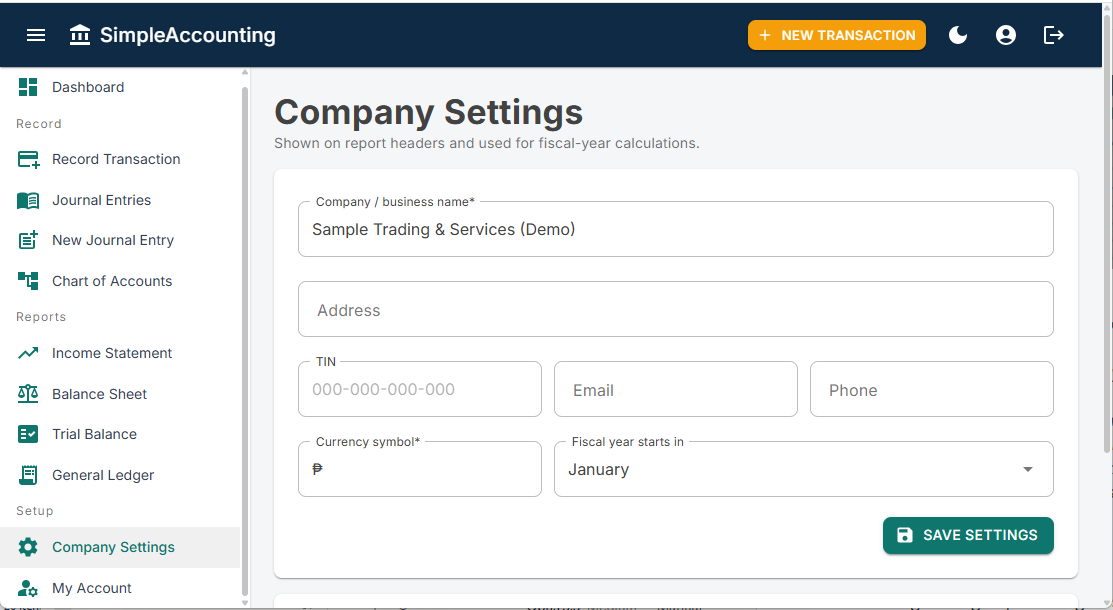
- Company / business name (required). Type the registered name, for example Dela Cruz Hardware & Supply.
- Address: the business address as it should appear on reports.
- TIN: your BIR Tax Identification Number, for example
123-456-789-000. - Email and Phone: optional contact details.
- Currency symbol (required). Leave it as ₱ unless you use another currency.
- Fiscal year starts in: pick the month your business year begins. For most businesses that's January. The system uses this for "year to date" figures.
- Voucher signatories (optional): type the names to print under Checked by and Approved by on Cash and Check Vouchers, for example Maria Santos, Bookkeeper and Juan Dela Cruz, Owner. Prepared by is filled in automatically with the user who recorded the payment.
- Cheque printing (only if you pay by check): set where the date, payee and amount go on your bank's cheques. See Setting up cheque printing in section 9.
- Click Save settings. A green "Settings saved" message appears.
Tip: you can come back and change these at any time. Your recorded transactions are not affected.
5. Form 2: Chart of Accounts
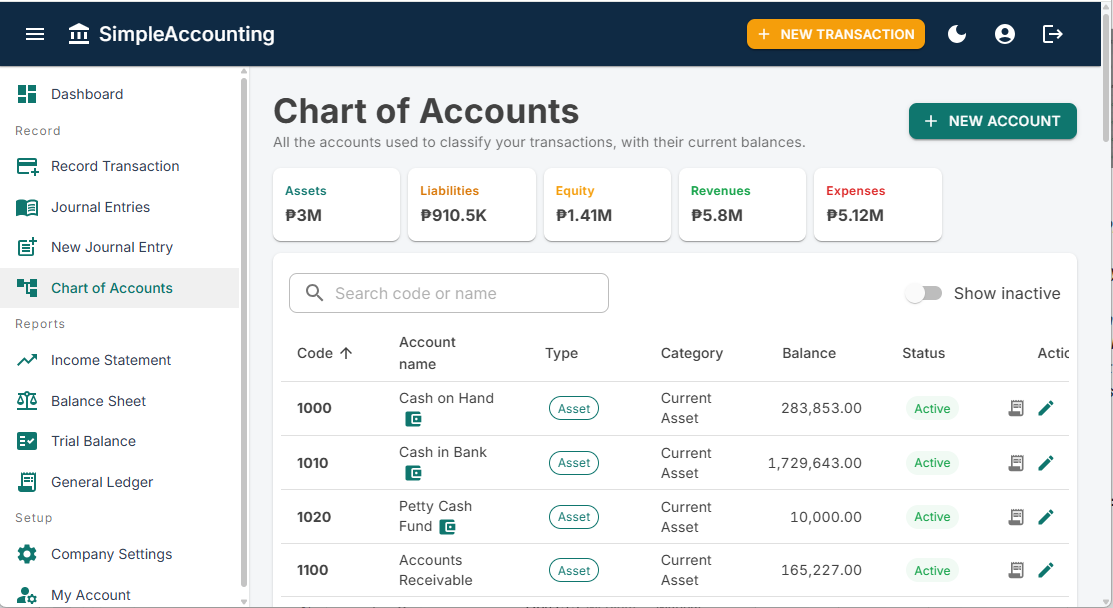
The Chart of Accounts is the list of all your "boxes". The system comes with 39 ready-made accounts for a typical Philippine small business, so most users never need to add one. Add one only when nothing on the list fits, for example a new expense type like Advertising.
Where: side menu → Record → Chart of Accounts.
Reading the list
- The five tiles at the top show the total for each kind (Assets, Liabilities, Equity, Revenues, Expenses). Click a tile to show only that kind. Click it again to show all.
- Search finds an account by its code or name.
- A wallet icon next to a name marks a cash or bank account. A lock icon marks a system account that can't be deleted.
- Balance is the account's current total, counting only posted entries. A number in brackets, like (17,833.33), is a negative balance.
- Show inactive reveals accounts you've switched off.
Add a new account
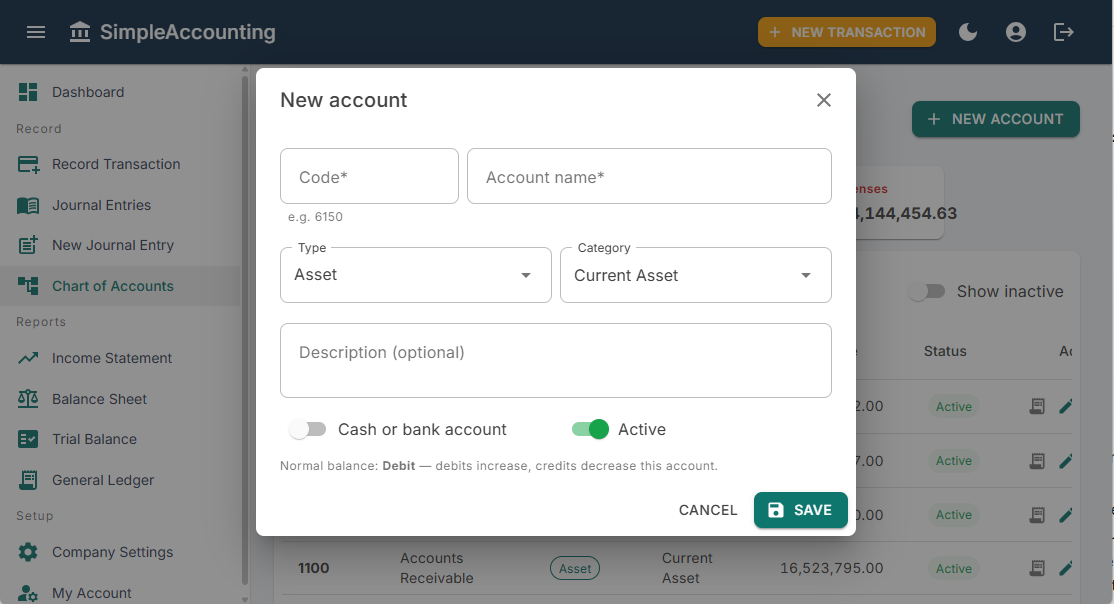
- Click New Account (top right).
- Code: a short unique number. Follow the numbering of the group it belongs to (see the table below). Example: a new expense Advertising → code 6150.
- Account name: a clear name, for example Advertising Expense.
- Type: Asset, Liability, Equity, Revenue or Expense (see section 2 if you're unsure).
- Category: the sub-group that decides where the account appears on reports. For example, Expense → Operating Expense, Asset → Current Asset (used up or collected within a year) or Non-current Asset (equipment, vehicles, buildings).
- Description (optional): a note on what goes in this account.
- Cash or bank account (assets only): switch this on for any cash box or bank account. These accounts then appear in the "Received into" and "Paid from" lists of Record Transaction.
- Active: leave this on.
- Click Save.
| Kind | Codes start with |
|---|---|
| Assets | 1 (1000–1999) |
| Liabilities | 2 |
| Equity | 3 |
| Revenue | 4 |
| Expenses | 5, 6 or 7 |
Edit an account
Click the pencil icon on the account's row, change what you need, then click Save. Once an account has transactions, its Type and Category are locked. This keeps your past reports correct.
Stop using an account
You can't delete an account that already has transactions. Instead, click the pencil icon, switch Active off, and save. The account disappears from the pick-lists but stays in your reports.
Delete an account
The trash-can icon works only for accounts that have never been used. Click it, then confirm with Delete.
6. Form 3: Record Transaction (the everyday form)
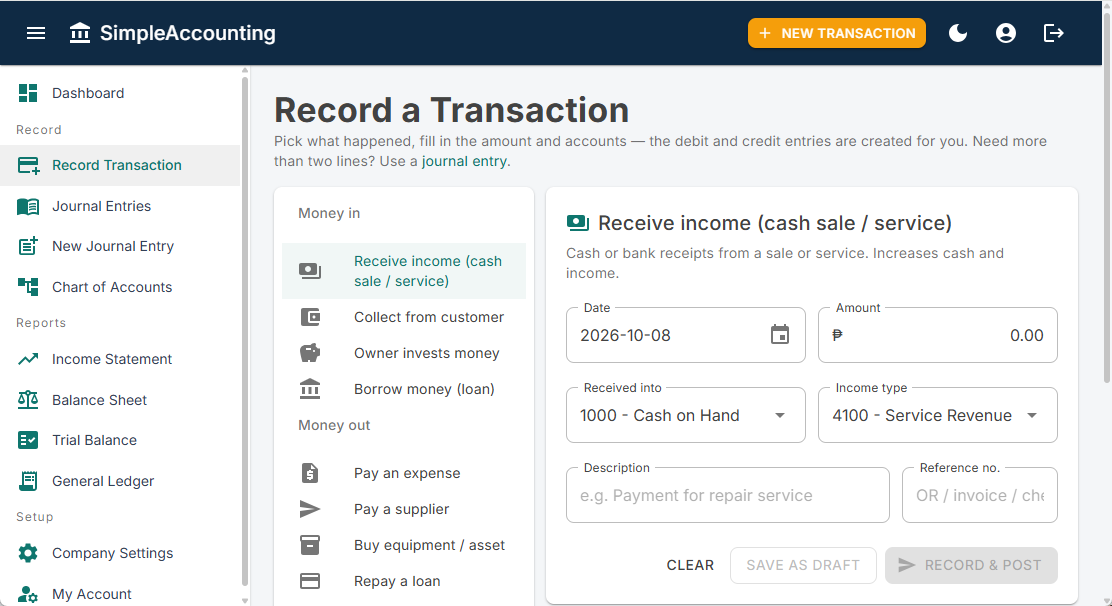
Use this form for almost everything. You pick what happened, type the amount and choose two accounts, and the system writes the debit and credit for you.
Where: the New Transaction button in the top bar, or side menu → Record → Record Transaction.
Step by step
- Pick what happened from the list on the left. It's grouped into Money in, Money out, No cash yet and Other. A short explanation appears on the right.
- Date: the date the transaction actually happened (the date on the receipt), not today's date if you're catching up.
- Amount: the total in pesos, for example
8500or8500.75. Don't type commas or the ₱ sign. - The two account boxes: the system pre-selects the most likely accounts. Change them if needed. The labels change with the transaction type, for example Expense type and Paid from.
- Description: a short note you'll recognise later, for example Meralco bill for September. If you leave it blank, the system uses the transaction type's name.
- Reference no.: the number on the official receipt (OR), sales invoice or cheque. This makes the entry easy to trace.
- Payee, Check no. and Check date appear only when money is paid out of a cash or bank account (the Money out options). Type who you paid in Payee. If you paid by check, type the Check no.; the check date defaults to the transaction date. A tick box then asks what kind of cheque it is: tick One-page cheque with built-in voucher for perforated voucher-cheques, leave it unticked for a cheque from a booklet. These are printed on the voucher and the cheque (section 9).
- Check the "This will record" box that appears. It shows the debit and credit in plain view.
- Click Record & post to save it as final. Or click Save as draft if someone should check it first.
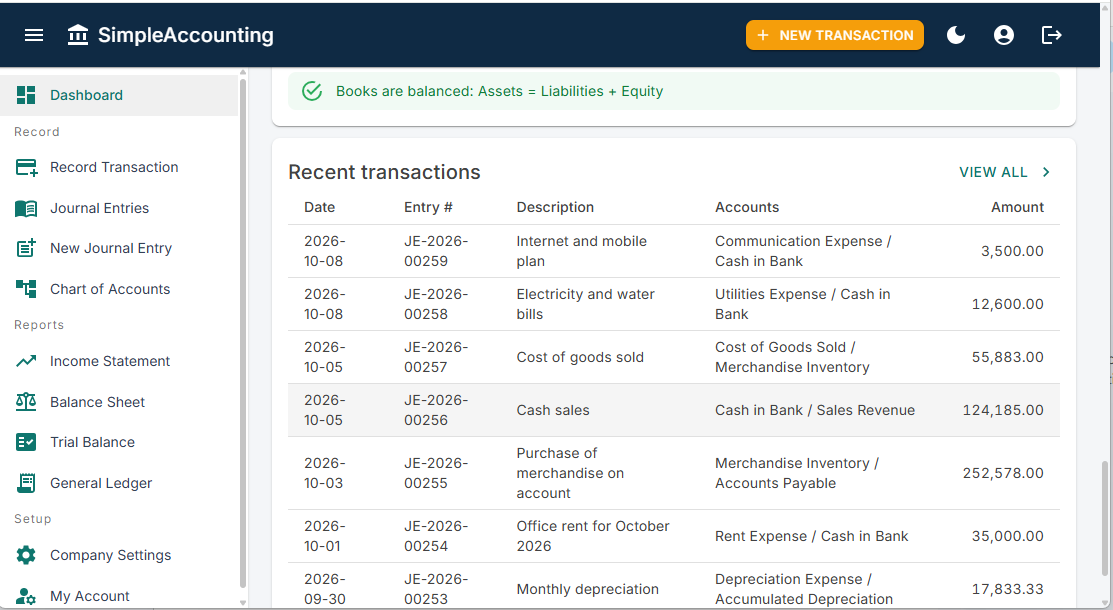
- A green message confirms the entry number (for example JE-2026-00215). Click View entry to open it. For payments, a Print Cash Voucher or Print Check Voucher button also appears. The form clears so you can record the next one.
The buttons stay greyed out until the date, an amount above zero and two different accounts are filled in.
Which option do I pick?
| What happened | Pick this option | First box | Second box | Example |
|---|---|---|---|---|
| A customer paid you in cash or by bank transfer for goods or a service | Receive income | Received into (Cash on Hand / Cash in Bank) | Income type (Sales or Service Revenue) | Walk-in customer pays ₱1,250 for a repair |
| You paid a bill or bought supplies | Pay an expense | Expense type (Rent, Utilities, Supplies…) | Paid from (Cash on Hand / Bank) | Paid ₱8,500 electricity from the bank |
| You paid a supplier bill you'd recorded earlier as unpaid | Pay a supplier | Payable account (Accounts Payable) | Paid from | Paid ₱45,000 to XYZ Supplies |
| You bought equipment, furniture, a vehicle or stock | Buy equipment / asset | Asset purchased (Office Equipment, Inventory…) | Paid with (cash, bank, or a payable if unpaid) | New laptop, ₱48,000 from the bank |
| You paid back part of a loan (principal only) | Repay a loan | Loan account (Loans Payable) | Paid from | Monthly loan principal ₱10,000 |
| The owner took money for personal use | Owner withdraws money | Drawings account (Owner's Drawings) | Paid from | Owner withdraws ₱30,000 |
| A customer paid an invoice you sent earlier | Collect from customer | Received into | Receivable account (Accounts Receivable) | ABC Corp pays invoice INV-1012 |
| The owner put personal money into the business | Owner invests money | Deposited to | Capital account (Owner's Capital) | Owner deposits ₱200,000 |
| You received a loan | Borrow money (loan) | Received into | Loan account (Loans Payable) | Bank loan of ₱500,000 released |
| You sold on credit (the customer will pay later) | Sale on credit | Receivable account | Income type | Invoice ABC Corp ₱65,000 |
| A supplier billed you and you'll pay later | Receive supplier bill | Expense or asset (Inventory, Repairs…) | Payable account (Accounts Payable) | Supplier delivers ₱180,000 of stock on 30 days' credit |
| You moved money between your own cash and bank accounts | Transfer between cash/bank | Transfer to | Transfer from | Deposit ₱60,000 cash sales to the bank |
Worked example: paying the electricity bill
- Click New Transaction.
- Pick Pay an expense.
- Date:
2026-10-05. Amount:8500. - Expense type: 6200 – Utilities Expense. Paid from: 1010 – Cash in Bank.
- Description: Meralco bill for September. Reference no.: MER-0925.
- Payee: Manila Electric Company. Check no.: 100245 (the bill was paid by check).
- The preview shows Utilities Expense debit 8,500.00 and Cash in Bank credit 8,500.00.
- Click Record & post. Then click Print Check Voucher to print it for signing.
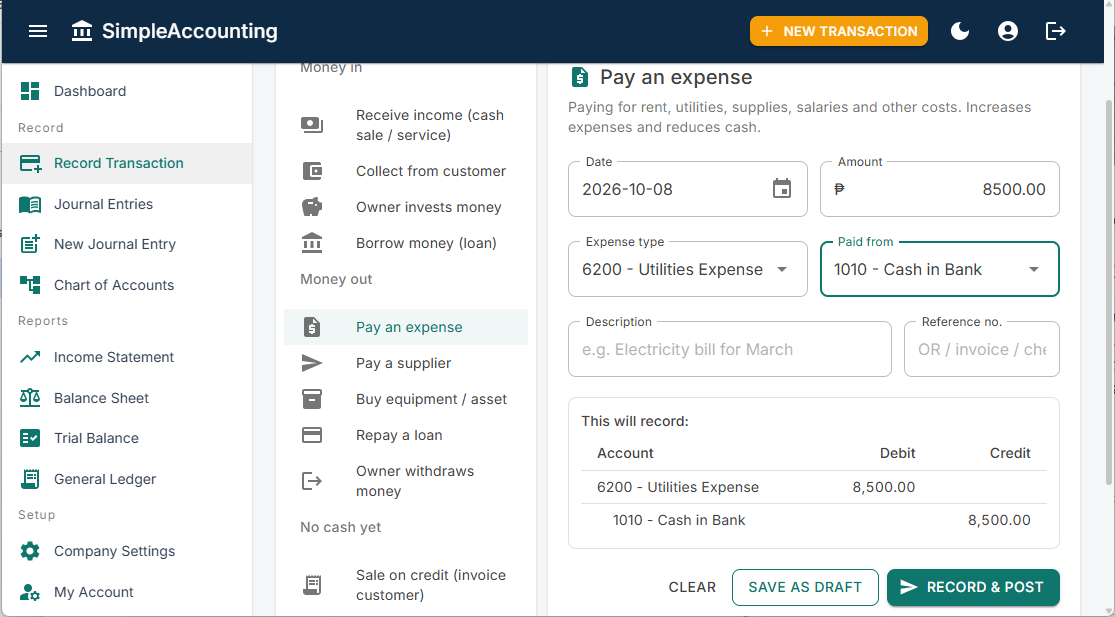
Bills with interest or tax: if one payment covers two things, like a loan payment of ₱14,000 that is ₱10,000 principal plus ₱4,000 interest, either record two transactions (Repay a loan ₱10,000, then Pay an expense ₱4,000 Interest Expense) or use one journal entry with three lines (section 7).
7. Form 4: New Journal Entry
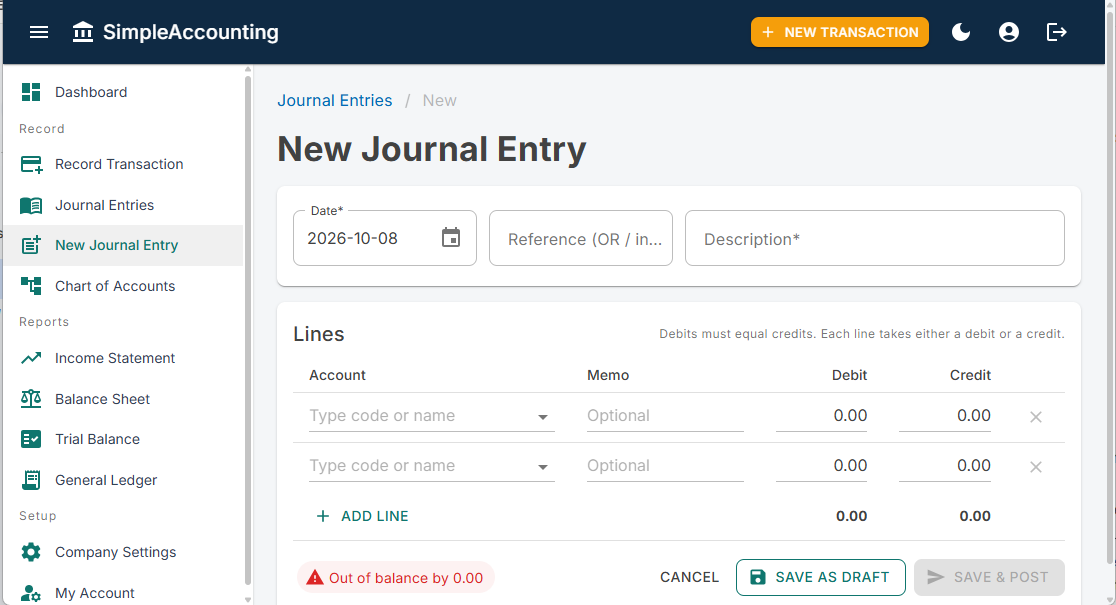
Use this form when one transaction touches three or more accounts, for example payroll with deductions, a loan payment that includes interest, or a sale where only part is paid now. It's the "long form" of Record Transaction: you write each line yourself.
Where: side menu → Record → New Journal Entry.
Step by step
- Date: when it happened.
- Reference: the OR, invoice or cheque number (optional, but recommended).
- Description (required): what the whole entry is about, for example Payroll, October 1–15.
- Lines: the form starts with two empty lines. For each line:
- Account: start typing the code or name (for example
600orsalar), then pick from the list. - Memo (optional): a note for that line only.
- Debit or Credit: type the amount in ONE of the two columns. Typing in one column clears the other.
- Account: start typing the code or name (for example
- Need more lines? Click Add line. The new line is pre-filled with the amount still needed to balance the entry, so usually you just choose the account.
- Remove an unwanted line with the × at the end of the row. An entry always keeps at least two lines.
- Look at the badge under the lines:
- Green Balanced: debits equal credits. You can post.
- Red Out of balance by …: the two totals differ by that amount. Fix the amounts first.
- Click Save & post to make it final, or Save as draft to finish or check later. Both buttons need a balanced entry, a date and a description. If something is missing, a red message tells you which line to fix.
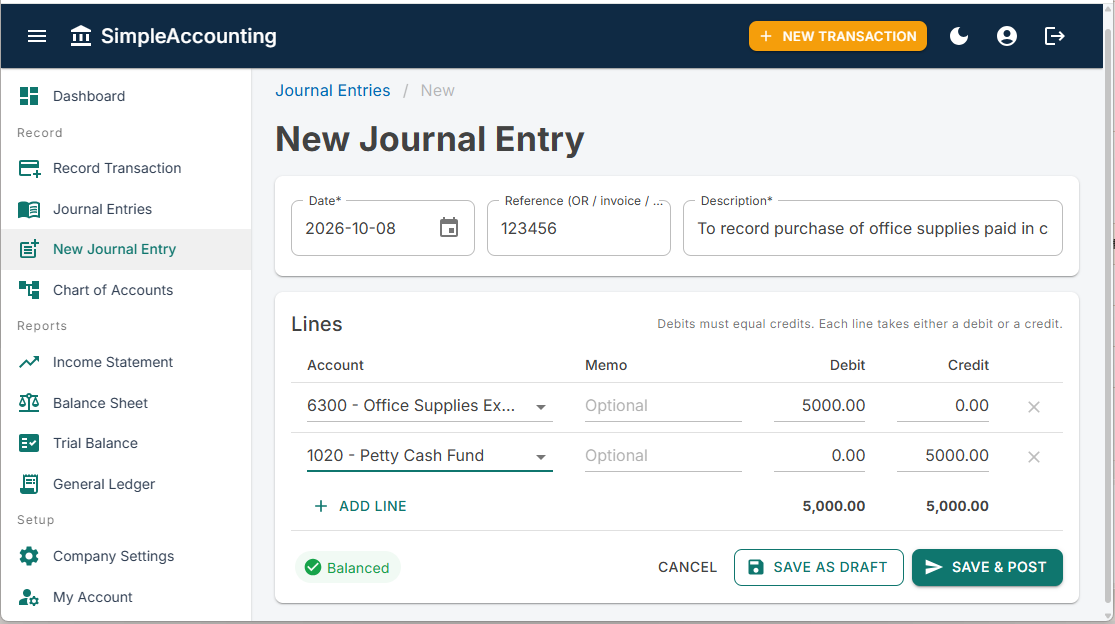
Payment details: when a line credits a cash or bank account (money going out), a Payment details box appears above the lines. Fill in Payee, and Check no. and Check date if you paid by check. They are printed on the Cash or Check Voucher (section 9).
Worked example: payroll with deductions
Gross salaries are ₱90,000. You withhold ₱5,000 tax and ₱5,000 SSS/PhilHealth/Pag-IBIG, so employees receive ₱80,000 from the bank.
| Account | Debit | Credit |
|---|---|---|
| 6000 – Salaries and Wages | 90,000.00 | |
| 1010 – Cash in Bank | 80,000.00 | |
| 2210 – Withholding Tax Payable | 5,000.00 | |
| 2220 – SSS / PhilHealth / Pag-IBIG Payable | 5,000.00 | |
| Totals | 90,000.00 | 90,000.00 |
When you remit the tax and contributions later, use Pay a supplier in Record Transaction. Choose the payable account (2210 or 2220) in the first box and the bank in the second.
Working with a saved entry
Open any entry from Journal Entries (section 8). The buttons at the top depend on its stage:
| Stage | What you can do |
|---|---|
| Draft | Change anything, then Save as draft or Save & post. Delete draft removes it completely. |
| Posted | View only. Void cancels it: type a reason (for example Wrong amount, re-entered as JE-2026-00230), then click Void entry. This can't be undone. |
| Voided | View only. A red banner shows when and why it was voided. |
| Any stage | History (audit trail) at the bottom shows who created, changed, posted or voided the entry, and what changed. Duplicate opens a new entry with the same accounts and amounts, dated today. It's handy for monthly bills and for re-entering a voided entry correctly. Print prints the entry. For payments out of cash or bank, Print Cash Voucher / Print Check Voucher opens the voucher (section 9). |
Fixing a mistake in a posted entry
Still a draft? Just open it, change anything and save. Drafts can be edited freely.
Already posted? A posted entry can't be edited, so nobody can quietly change the books. Correct it like this:
- Open the entry (from Journal Entries, or by clicking it in a report).
- Click Correct this entry (orange button).
- Type what was wrong, for example Wrong amount (8,500 instead of 5,800), and click Void and correct.
- The wrong entry is voided, and a copy opens with the same date, reference, payee, accounts and amounts. A blue note says which entry you are correcting.
- Fix what was wrong, then click Save & post. The corrected entry gets a new entry number (and a new voucher number, if it is a payment).
The wrong entry stays on file marked Voided, with your reason, so there's a clean audit trail. It no longer counts in any balance or report.
Payments with a voucher or cheque: the old voucher still prints, marked VOID. If a cheque was already printed for the wrong entry, write VOID across it and keep it with the old voucher. Print the new voucher (and cheque) from the corrected entry.
Small mistakes in old periods: if the books for that month were already reported, your accountant may prefer an adjusting entry instead: a new journal entry dated today that moves the amount to the right account (for example debit Rent Expense, credit Utilities Expense). Ask them which they prefer.
8. Finding entries: the Journal Entries list
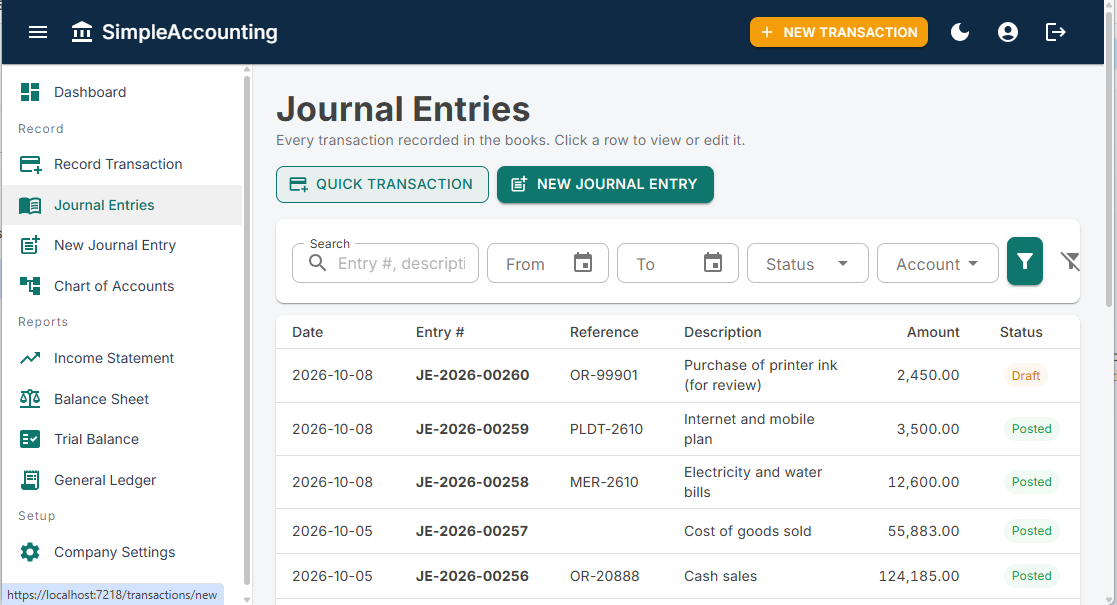
Every transaction ever recorded is listed here, newest first. Click any row to open it.
Where: side menu → Record → Journal Entries.
Search and filter
- Search: type part of an entry number, description, reference, payee, voucher number or check number (for example
Meralco,INV-1012orCHV-2026), then press Enter. - From / To: limit the list to a date range.
- Status: show only Draft, Posted or Voided entries. Tip: choose Draft to see what still needs posting.
- Account: show only entries that use a particular account, for example everything paid from Cash on Hand.
- Click the filter button (funnel icon) to apply. Click the crossed-out funnel to clear all filters.
Reading the list
| Column | Meaning |
|---|---|
| Date | When the transaction happened |
| Entry # | The system's number, for example JE-2026-00215. Numbering restarts every year. |
| Reference | Your OR, invoice or cheque number |
| Description | What it was for |
| Accounts | The accounts used |
| Amount | The total of the entry |
| Status | Draft (orange), Posted (green), Voided (red) |
| (receipt icon) | Payments out of cash or bank: click to print the Cash or Check Voucher |
Use the arrows at the bottom to move between pages, and Rows per page to show more at once.
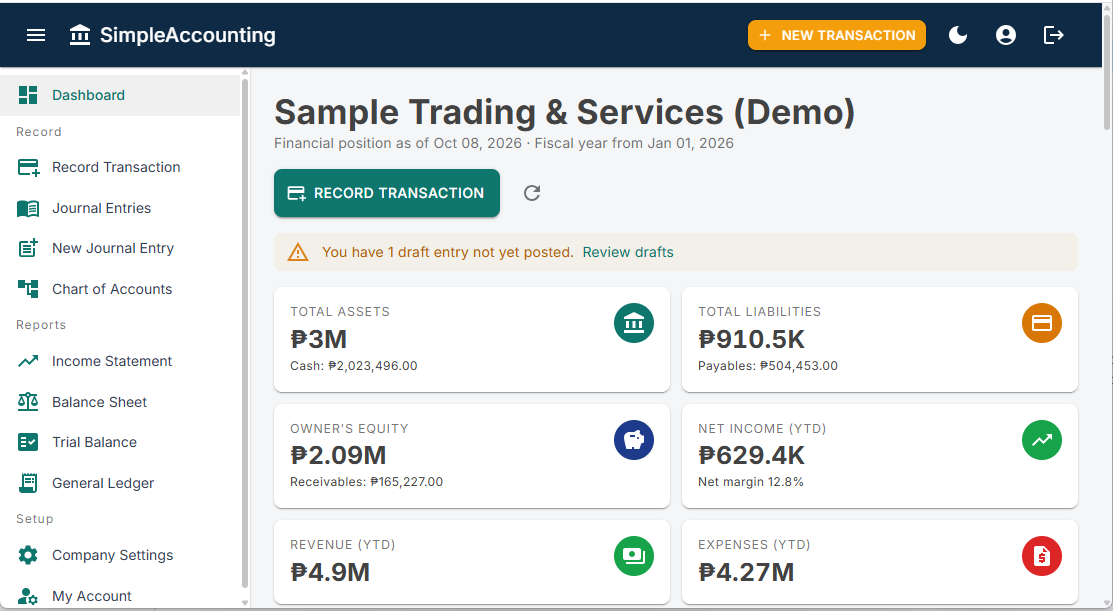
The dashboard also shows an orange alert when drafts are waiting. Click Review drafts to jump to them.
9. Cash and Check Vouchers
A voucher is the paper that authorizes a payment. Someone prepares it, someone checks it, the owner approves it, and the person paid signs that they received the money. SimpleAccounting prints it for you from the payment you recorded, so you never type the details twice.
- Cash Voucher (CV): for payments made in cash, from Cash on Hand or Petty Cash.
- Check Voucher (CHV): for payments made by check from a bank account. A payment becomes a Check Voucher as soon as you type a Check no.
Any posted entry that takes money out of a cash or bank account gets a voucher. Receipts, sales on credit and supplier bills you haven't paid yet don't.
How a voucher is created
- Record the payment as usual: Record Transaction with a Money out option (Pay an expense, Pay a supplier, Buy equipment, Repay a loan, Owner withdraws money), or a New Journal Entry that credits a cash or bank account.
- Fill in Payee: the person or company you paid.
- Paid by check? Type the Check no. and, if different from the transaction date, the Check date. Leave Check no. blank for cash. Then tick or untick One-page cheque with built-in voucher (perforated): ticked for voucher-cheques, unticked for cheques torn from a booklet. The starting value comes from Company Settings.
- Click Record & post (or Save & post). The system gives the voucher its number: CV-2026-00001, CV-2026-00002… for cash and CHV-2026-00001… for checks. Each series restarts every year.
- Click Print Cash Voucher or Print Check Voucher. The voucher opens as a PDF in a new tab. Print it on Letter-size paper (8.5" × 11"), or click the download button to save it.
Drafts: you can print a draft voucher to have it checked before posting. It is marked DRAFT and has no number yet; the number is given when you post.
Payments recorded before vouchers existed: they get their voucher number the first time you print them.
Printing the cheque
For check payments the system also fills in the bank's cheque for you: the date, the payee, the amount in figures and the amount in words. It prints only that text, onto the cheque the bank already printed.
- Post the payment first. A draft or voided payment can't print a cheque, so a cheque is only ever printed for an approved payment.
- Open the payment (from Journal Entries or Cash & Check Vouchers) and click:
- Print Cheque for a booklet cheque. Tear a leaf from the booklet and put it in the printer's manual or envelope feeder.
- Print Voucher-Cheque for a one-page voucher-cheque. The voucher prints in the voucher part and the cheque fields in the cheque part, on the same sheet. Tear at the perforation, give the cheque to the payee and file the voucher.
- In the PDF window choose Print, and set the scale to 100% or Actual size. Never use "Fit to page", or everything shifts.
- Check the printed cheque before it is signed.
The payee and the amounts are printed with asterisks (for example ***12,345.67***) so nothing can be added in front of or after them. For booklet cheques, print the Check Voucher separately on plain paper for signing.
Setting up cheque printing (one time)
Each bank puts the date, payee and amount boxes in slightly different places. Measure once with a ruler, in millimetres.
- Go to Setup → Company Settings → Cheque printing.
- Tick Our cheques are usually one-page voucher-cheques if that's what your bank gives you. This only sets the starting value of the tick box on each payment.
- Open the Booklet cheque or One-page voucher-cheque tab and enter:
- Cheque size (booklet), or paper size and where the cheque sits on it (voucher-cheque). A standard cheque is 203.2 × 76.2 mm (8 × 3 in). Letter paper is 215.9 × 279.4 mm.
- For Date, Pay to the order of, Amount in figures and Amount in words: how far the start of the text is from the cheque's left edge and top edge, and how wide the space is.
- Date style: OCT 09, 2026, 10-09-2026, or one digit per box for cheques with date boxes (set the box width and any gap between the MM, DD and YYYY groups).
- Options: asterisks, capital letters, and Account Payee Only (prints the two lines with "ACCOUNT PAYEE ONLY" at the top-left).
- Click Save settings, then Print alignment test. Print it on plain paper (cut to cheque size for booklets) at 100% / Actual size.
- Lay the test over a real cheque and hold both up to the light. The blue boxes show where text will print.
- If everything is off by the same amount, use the Printer nudge (for example Right +2 mm, Down −1 mm). If only one field is off, change that field.
- Save and print the test again until it lines up. Then print a real cheque.
Tip: try the first real cheque on a cancelled or spoiled cheque. Printers feed narrow paper differently, so when you change printers, print the alignment test again.
What's on the voucher
| Part | What it shows |
|---|---|
| Header | Your company name, address, phone, email and TIN (from Company Settings), and the voucher title, number and date |
| Pay to / Payee and Amount | Who was paid and how much |
| Bank, Check no., Check date | Check Vouchers only: the bank account the check was drawn on |
| Paid from, Reference | Cash Vouchers only: the cash account and your OR or invoice number |
| Particulars | The description of the entry, plus any line memos |
| Amount in words | For example Eight Thousand Five Hundred Pesos Only or … and 75/100 Only |
| Accounting entry | The account codes and titles with their debits and credits |
| Prepared by / Checked by / Approved by | Signature boxes. Prepared by is the user who recorded the entry; the other two names come from Company Settings |
| Received by (payee) | The payee signs and dates this when they receive the cash or check |
A voided payment still prints, with a big VOID across it and the void reason at the bottom, so the paper trail matches the books.
The voucher list
Where: side menu → Record → Cash & Check Vouchers.
The list shows every posted or voided payment, newest first: date, voucher number, type, payee, check number, amount and status.
- Search by voucher number, payee, check number or description, then press Enter.
- Use From / To for a date range, for example one month for your monthly voucher file.
- Use Type to see only Cash Vouchers or only Check Vouchers.
- Click the receipt icon at the end of a row to print that voucher. Click anywhere else on the row to open its journal entry.
Good habit: print the voucher when you release the payment, have it signed, and file it with the receipt or invoice in voucher-number order. At month end, the Check Vouchers list for the month should match the checks that cleared on your bank statement.
10. Reading the dashboard and reports
Reports are read-only: they build themselves from your posted entries. Drafts and voided entries never appear in them.
Dashboard
| Tile or chart | What it tells you |
|---|---|
| Total Assets | Everything the business owns; the small line shows cash on hand and in bank |
| Total Liabilities | Everything the business owes; the small line shows unpaid supplier bills |
| Owner's Equity | The owner's share: assets minus liabilities |
| Net Income (YTD) | Profit (green) or loss (red) since the start of the business year |
| Revenue / Expenses (YTD) | Total earned and total spent this business year |
| Revenue / Expenses this month | This month so far, compared with last month |
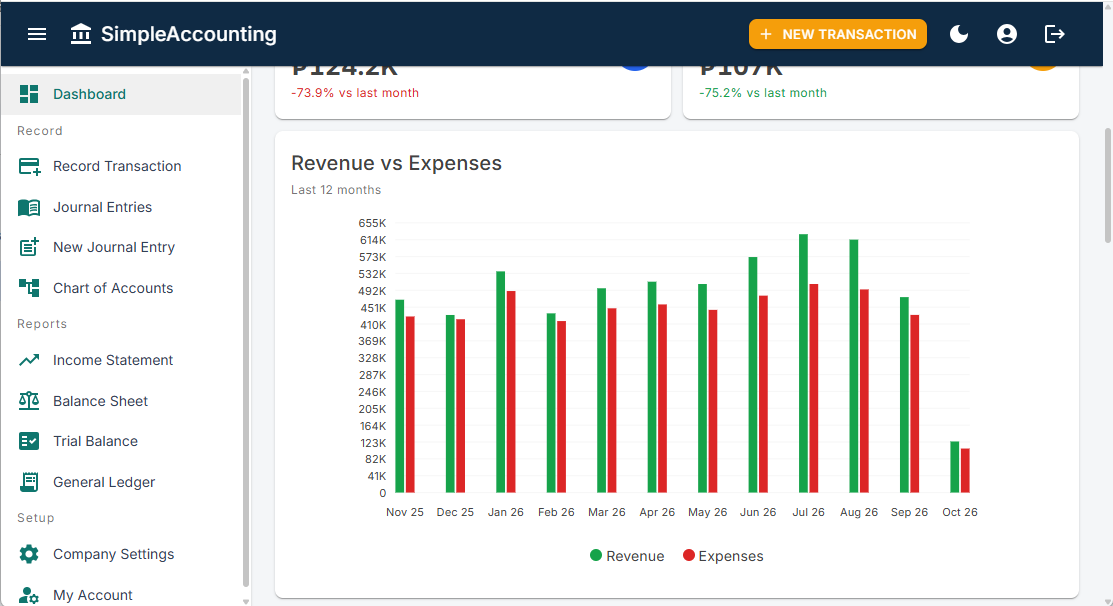
| Revenue vs Expenses chart | Green and red bars for each of the last 12 months. Green taller than red = profitable month. |
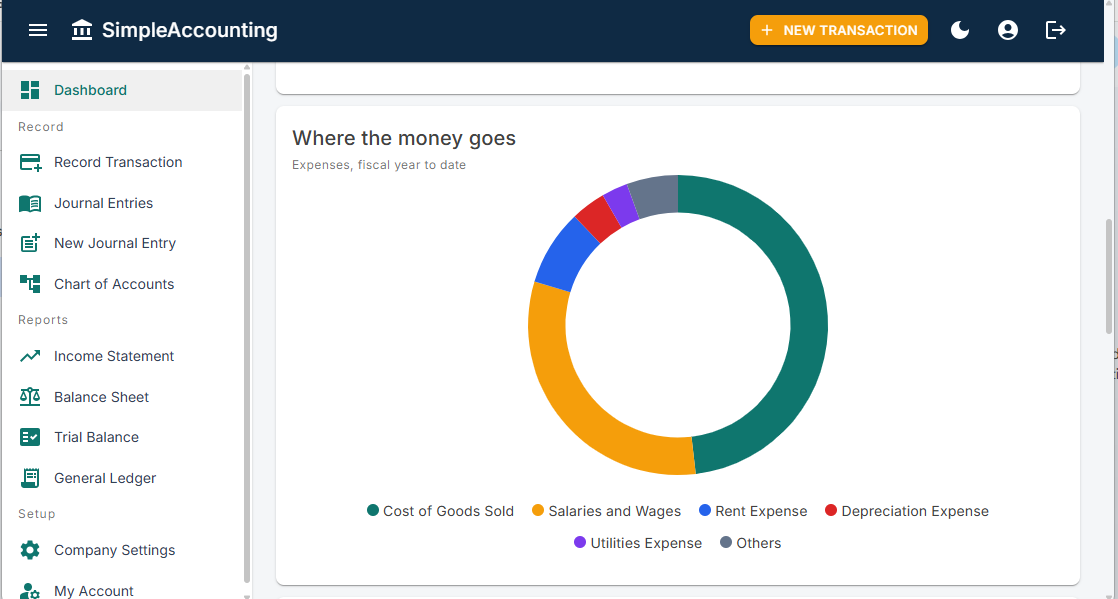
| Where the money goes | The biggest expense types this year |
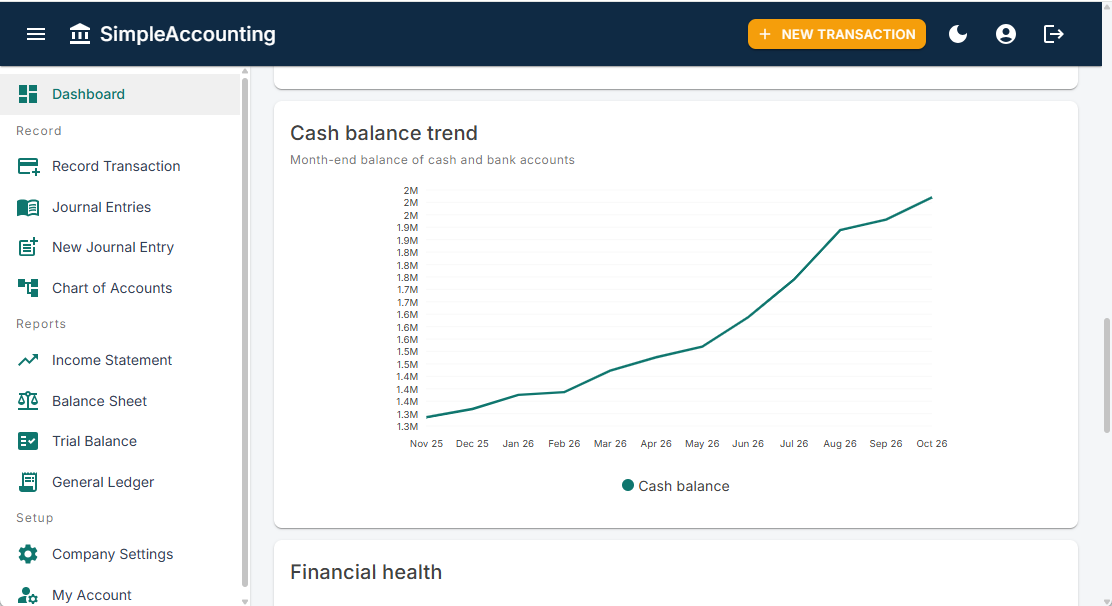
| Cash balance trend | Your cash at the end of each month |
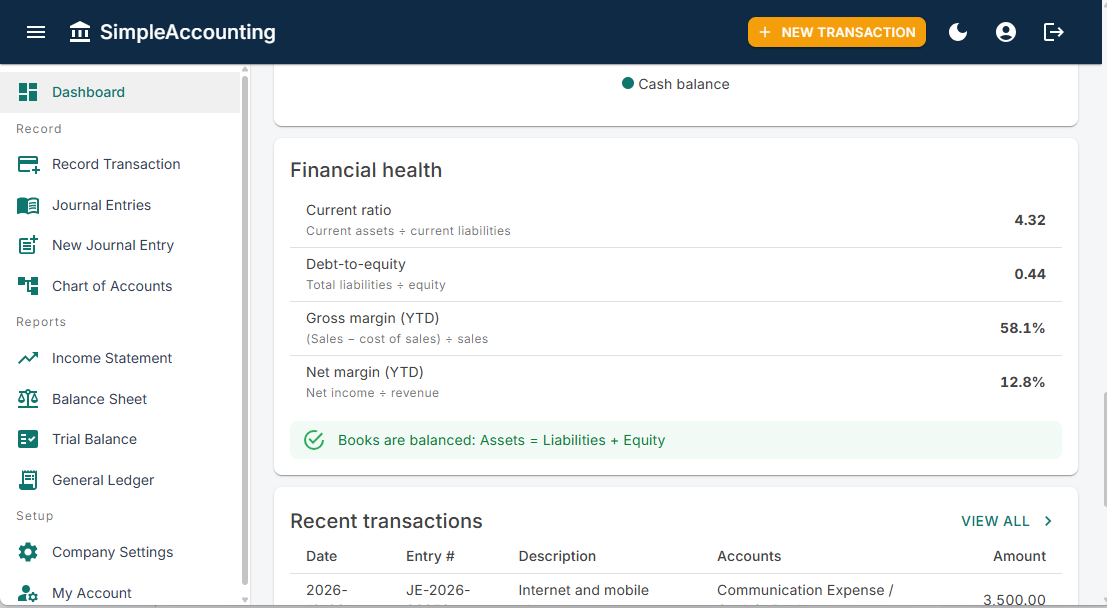
| Financial health | Current ratio above 1 means you can pay this year's debts. Debt-to-equity below 1 means you owe less than the owner has put in. Margins show how many centavos of each peso of sales you keep. |
| Books are balanced | Green = everything adds up. Red = check your entries. |
Reports
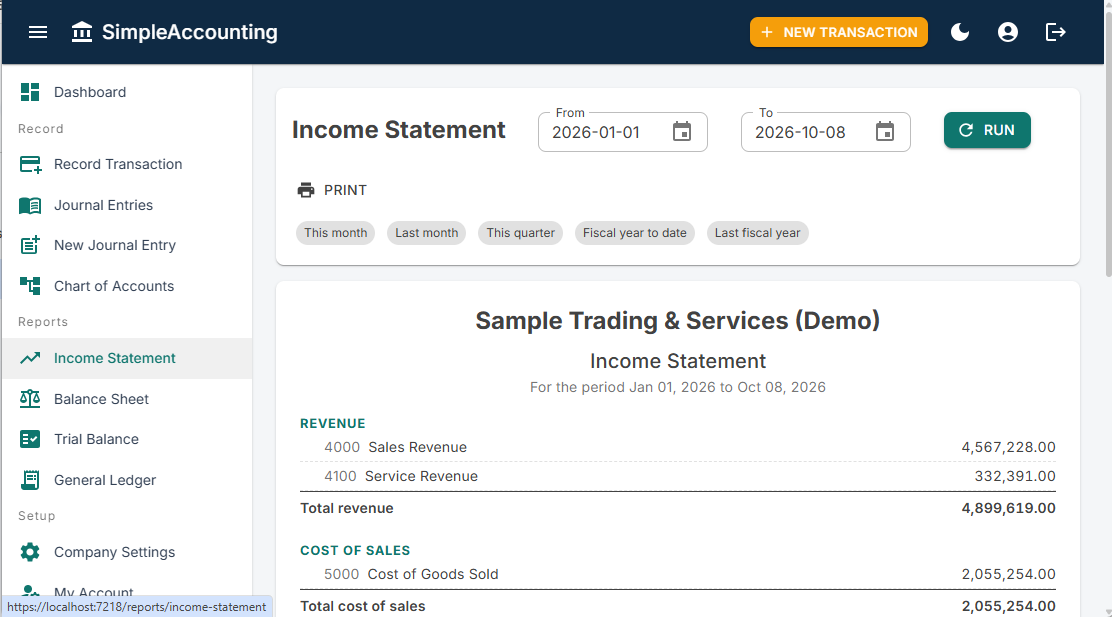
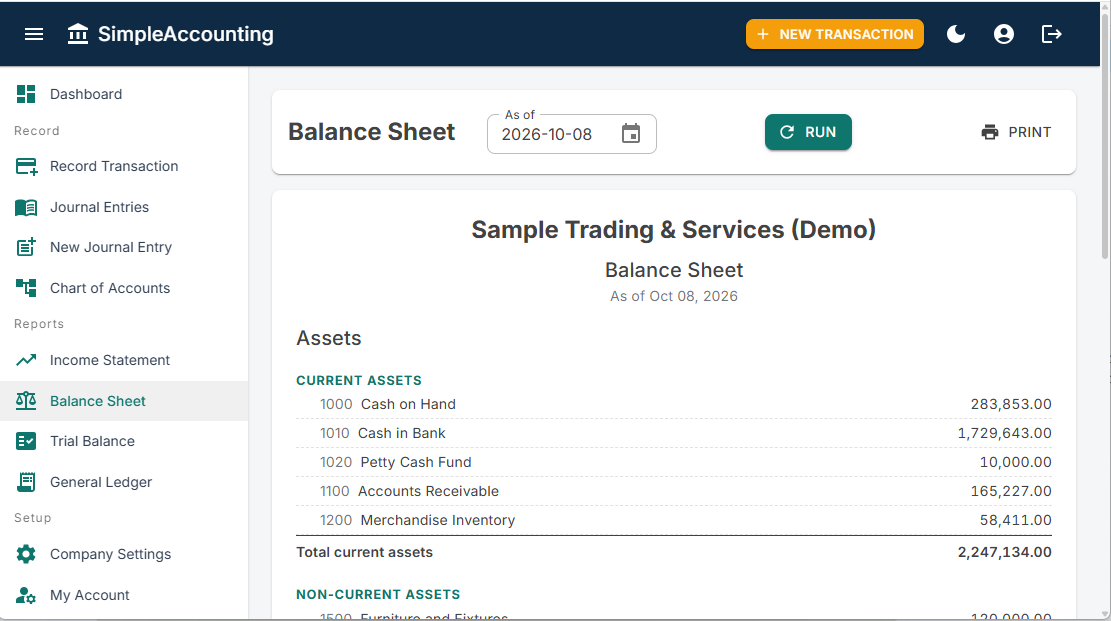
All reports are under Reports in the side menu. Choose the dates, click Run, and click Print for a paper or PDF copy, or Export to Excel for a spreadsheet. Click any account name in a report to see its details.
Export to Excel saves an .xlsx file (to your Downloads folder) with your company name, the report title and period at the top. Subtotals, totals and running balances are Excel formulas, so they stay correct if you add or change rows. The same button is on Journal Entries (every entry matching your filters, plus a Lines sheet with each debit and credit, handy for sorting or pivot tables), Chart of Accounts and Cash & Check Vouchers.
| Report | Answers the question | How to use it |
|---|---|---|
| Income Statement (Profit & Loss) | Did we make money in this period? | Pick a period, or click a shortcut: This month, Last month, This quarter, Fiscal year to date, Last fiscal year. Read it top to bottom: Revenue → minus Cost of Sales = Gross Profit → minus Operating Expenses = Operating Income → plus/minus other items = Net Income (or Net Loss). |
| Balance Sheet | What do we own and owe on a given day? | Pick an As of date. Assets on top; Liabilities and Equity below. The two totals must be equal (green message). |
| Trial Balance | Do all the debits equal all the credits? | Pick an As of date. Mostly for your accountant or auditor. |
| General Ledger | What happened in one account? | Pick an account and dates. You see the opening balance, every entry, and the running balance after each one, like a bank statement. Click a row to open that entry. |
Tip: to check your bank balance against the bank statement, open the General Ledger for Cash in Bank for the same month.
Audit trail: who did what, and when
SimpleAccounting keeps a permanent record of every change. Nobody, including the administrator, can edit or delete it from the app. Use it to answer questions like "Who changed this amount?" or "When was this voided, and why?".
What is recorded: every journal entry created, edited, posted, voided or deleted (with its lines before and after); every new, changed or deactivated account; changes to Company Settings (including voucher signatories and cheque printing); every login and logout; and, in the multi-company editions, new, archived and restored companies and who was given or lost access. Each record shows the date and time, the user, and the values before and after.
See the history of one entry: open the entry and click History (audit trail) at the bottom of the page. It lists every change from the day the entry was created.
Search the whole trail: side menu → Setup → Audit Trail.
- Filter by date (From / To), User, Action (for example Voided) or Record type (for example Account), or type in Search (an entry number, account name, payee or amount), then click the filter button.
- Click a row to see exactly what changed: the old value in red, the new value in green.
- Click an entry number to open that entry.
- Export to Excel saves the filtered trail for your auditor.
Changes made before the audit trail was installed are not listed.
11. Cheat sheet, common mistakes and glossary
Everyday situations
| Situation | Do this |
|---|---|
| Daily cash sales | Record Transaction → Receive income → Cash on Hand / Sales Revenue |
| Depositing cash to the bank | Record Transaction → Transfer between cash/bank (to Cash in Bank, from Cash on Hand) |
| Paying rent, utilities, internet, fuel, supplies | Record Transaction → Pay an expense |
| Supplier delivers stock, pay in 30 days | Receive supplier bill now; Pay a supplier when you pay |
| Invoicing a customer who pays later | Sale on credit now; Collect from customer when they pay |
| Payroll with tax and SSS/PhilHealth/Pag-IBIG | New Journal Entry with 4 lines (section 7) |
| Loan payment with interest | Repay a loan (principal) + Pay an expense (Interest Expense), or one 3-line journal entry |
| Bank service charges or interest earned | Pay an expense (Bank Charges) / Receive income (Interest Income), using Cash in Bank |
| Owner takes money home | Owner withdraws money (never record this as an expense) |
| Recording for a different client | Company button in the top bar → pick the company, then record (section 3) |
| Taking on a new client | Companies → New company (section 3) |
| Need a signed voucher for a payment | Fill in Payee (and Check no. if by check) when recording, then Print Cash / Check Voucher (section 9) |
| Writing the cheque | Post the payment, then Print Cheque (booklet) or Print Voucher-Cheque (one-page form), at 100% / Actual size |
| Same bill every month | Open last month's entry → Duplicate → change date and amount → Save & post |
| Wrong amount already posted | Open it → Correct this entry → fix the copy → Save & post (section 7) |
| Send figures to the accountant | Export to Excel on the report, Journal Entries or Chart of Accounts |
| "Who changed this?" | Open the entry → History, or Setup → Audit Trail (section 10) |
Common messages and how to fix them
| Message | What it means | Fix |
|---|---|---|
| Debits (…) and credits (…) must be equal | The two sides don't match | Check the amounts; use Add line to fill the gap |
| Line 2: please select an account | A line has an amount but no account | Pick the account, or remove the line with × |
| Enter either a debit or a credit, not both | One line has amounts in both columns | Clear one of them |
| A journal entry needs at least two lines | Only one line is filled | Add the other side |
| Only draft entries can be edited | You tried to change a posted entry | Void it and re-enter it (section 7) |
| This account has transactions and cannot be deleted | The account is in use | Switch Active off instead |
| Account code '…' is already in use | Two accounts can't share a code | Choose another code |
| Your session has expired | You were logged out | Refresh the page and log in again |
| You switched to another company in a different window | Another window opened a different company | Reload this page; check the company button before saving |
| Open or create a company first | You have no company yet, or lost access to it | Go to Companies and create or open one |
| Access denied (when opening Register) | Only the administrator can create user accounts | Ask the administrator to create your account |
| This entry does not pay money out of a cash or bank account… | You tried to print a voucher for an entry that isn't a payment | Vouchers are only for payments out of cash or bank. Use Print on the entry instead |
| Print Cheque is greyed out | The payment is still a draft, or it was voided | Post the entry first. A voided payment can't print a cheque |
| The printed cheque text is shifted | The PDF was scaled, or the positions need adjusting | Print at 100% / Actual size; then fine-tune in Company Settings → Cheque printing |
Good habits
- Record transactions daily, or at least weekly, while the receipts are fresh.
- Always type the reference number from the receipt or invoice.
- Keep the paper or scanned receipts. File them by entry number (JE-…), or with the signed voucher (CV-… / CHV-…) for payments.
- At month end, check that the Cash in Bank general ledger matches your bank statement, and that the dashboard says Books are balanced.
- Never delete or void to "hide" something. Voided entries stay visible for audit.
Glossary
| Term | Plain meaning |
|---|---|
| Account | A labelled box that keeps a running total, for example Cash in Bank |
| Accounts Payable | Bills you still have to pay |
| Accounts Receivable | Money customers still owe you |
| Accumulated Depreciation | The part of your equipment's value already "used up" over time |
| Balance | The current total in an account |
| Chart of Accounts | The list of all your accounts |
| Cost of Goods Sold | What the items you sold cost you to buy |
| Credit | The right-hand side of an entry |
| Debit | The left-hand side of an entry |
| Depreciation | Spreading the cost of equipment over its useful years |
| Draft | A saved entry that isn't counted yet |
| Drawings | Money the owner takes out for personal use |
| Fiscal year | Your business's 12-month accounting year |
| Gross profit | Sales minus the cost of the goods sold |
| Journal entry | One recorded transaction, with its debit and credit lines |
| Ledger | The full history of one account |
| Net income | What's left after all expenses: your profit |
| Owner (of a company) | A user who can manage who has access to a company, and archive or delete it |
| Payee | The person or company you paid |
| Voucher-cheque | A one-page bank form with a voucher and a cheque, separated by a perforation |
| Post | Make an entry final so it counts in reports |
| Audit trail | The permanent record of who changed what and when |
| Void | Cancel a posted entry while keeping it on file |
| Voucher | The signed paper that authorizes a payment: a Cash Voucher (CV) for cash, a Check Voucher (CHV) for checks |
| YTD (year to date) | From the start of the business year until today |